

English
ArtBusiness
Computers
Games
Health
Home
Internet
Kids & teens
Recreation
Reference
Science
Shopping
Society
Sports
Français
ArtBusiness
Divertissement
Enfants & ados
Informatique
Internet
Jeux
Maison
Référence
Santé
Science
Shopping
Société
Sports
Register
Membership
Links
Help
About

Software
List of softwares versions A1 (20) 2019-11-01
A Beautiful Sunset Screensaver A Colour Handbook of Small Animal Emergency and Critical Care Medicine A Email Spam Filter 2.0 A General Practice Library 2.1.121 A Handy A (...)
DAEMON Tools Lite v.4.30.2 (1) 2019-10-28
The new version of Daemon Tools Lite is available. You can download Daemon Tools here. New : - CD/DVD/BluRay imaging ability - Images mounting from image catalog in menu (...)
Autorank Pro 5 features (1) 2018-05-12
Hello, I would like to know where I can find a complete list of features for Autorank Pro 5, is it dedicated to improve rankings in search engines or is it ecommerce (I'v (...)
List of softwares versions A7 (15) 2014-11-22
Apollo No1.DVD Ripper v7.0 Apollo No1.DVD Ripper v7.1 Apollo No1.DVD Ripper v7.2.1 Apollo No1.DVD Ripper v7.2.6 Apollo No1.DVD Ripper v7.3.0 Apollo No1.DVD Ripper v8.0.4 (...)
List of softwares versions A5 (3) 2014-11-19
Advanced Text to Speech Reader 3.5 Advanced Thunderbird Email Recovery v1.0 Advanced Thunderbird Email Recovery v1.1 Advanced Thunderbird Email Recovery v1.2 Advanced Tim (...)
Edit and Convert PDF as per your desires (2) 2014-10-09
PDF Editor Pro for Mac adds OCR technology and 6-in-1 PDF conversion functions on the basis of standard version. Pro version provides you a smarter way to deal with PDF d (...)
Rip &convert Blu-ray to iPad video Mac (2) 2014-06-20
How to rip and convert Blu-ray disc to iPad video format on Mac Watching Video Demo: Blu-ray Ripper for Mac is a powerful Blu-ray tool that is to rip Blu-ray/DVD to HD (...)
List of softwares versions A3 (1) 2014-04-05
AceMoney 3.4.2 AceMoney 3.5.3a name AceMoney 3.5.3a s/n AceMoney 3.5.4 AceMoney 3.5.8 AceMoney 3.7.1 AceMoney 3.7.2 AceReader 4.5b AceReader 4.6 AceReader 4.7 2 AceReader (...)
Easily edit and export PDFs as MS Office (0) 2012-04-13
PDF Editor for Mac PDF Editor for Mac is a top-quality and easy-to-use application for Mac users to edit, convert, and annotate PDF documents. This Mac PDF Editor allows (...)
How to remove copy protection from PDF (0) 2012-03-22
Many people like to copy contents from PDF e-books. Sometimes, you may find the copy option is disable. It is mainly because the PDF document is protected by owner passwo (...)
kindle fire converter for mac (0) 2012-02-13
Kindle Fire Converter for Mac can fast import/transfer any videos including HD video and SD video and audio files like AAC, AC3, AMR, WMA, M4A, MP3 etc to Kindle Fire, ed (...)
video editor for mac (0) 2012-02-13
As a professional video editing software to edit, convert and create great home video, Video Editor for Mac provides brilliant editing features to help you edit videos on (...)
video converter for mac (0) 2012-02-13
Video Converter for Mac is an excellent video converting and editing software for Macintosh users imovie to avi converter , MP4 to iMovie Converter , MPG to iMovie Conve (...)
How to recover your lost, deleted data (1) 2012-01-11
The amount of data we store on our computer every day is surprising, but what is even more astounding is the value of the information we store on our PCs without any back (...)
Convert PDF files to Flash (SWF) (3) 2012-01-04
PDF to Flash Converter for Mac can convert any Adobe PDF document into a Macromedia Flash (SWF) files on Mac also flash book/flash page/ flash flip magazine creator/maker (...)
ERP (Enterprise Resource Planning) Devel (1) 2011-07-13
123 Webserve Technology, is professional ERP (Enterprise Resource Planning), CRM Module, Custom Application Development Company, we can handle any kind of ERP Projects an (...)
How to convert DVD to iPhone (0) 2011-03-03
Step 1. Install and run Cucusoft DVD to iPhone Converter Choose the profile (output format), encode speed, and set the output folder. You need to set the output folder to (...)
Tips For Choosing the Right PDF to Word Converter (0) 2011-02-17
Tips For Choosing the Right PDF to Word Converter In assemblage requisite be a vast cheese who is typing a classify commencing pdf to word, or photocopying paragraphs par (...)
How ro rip Blu-ray movies (1) 2010-12-08
Still enjoy videos or movies using your iPad online with low speed or definition? What a painful thing! If there is an tool that can help you enjoy the newest Blu-ray mov (...)
Boilsoft Screen Recorder (0) 2010-11-05
Boilsoft Screen Recorder is a powerful yet elegant screen-recording software that can help you capture and record and the screen activities into AVI or WMV files, You can (...)
iPad Video Converter for Mac (0) 2010-11-01
Tanbee iPad Video Converter for Mac is designed for Apple iPad users to watch just about any video format on the iPad. Not only can this program convert general video (WM (...)
Web Development & Web Designing Company (0) 2010-10-29
PRITHVI123 We are creating Website Developer & Software Developer. We are creating website in PHP. We are Professional PHP Web Developer, we done lots of projects in (...)
Yahoo Video Downloader (0) 2010-10-18
A Clean Free Yahoo Video Downloader——StreamTransport 1.0.2.2171 Nowadays, more and more people upload, share and view those wonderful videos on the Yahoo! Video. Howe (...)
How to use Fake/Virtual webcam to enjoy (0) 2010-09-20
Recently, most popular IM software such as MSN Messenger, Skype, Yahoo Messenger, AIM Messenger, etc. support real time video chat. But if you don’t have a camera, or y (...)
Domain Name Offers (0) 2010-05-20
Magicoffers.net Looking for Best Domain Name & Web Hosting Offers? Choose the Best Web Hosting & Domain Name Discounts, Offers, Deals & Coupons for Free!. Hos (...)
Mp3, mp4 music converter (0) 2010-04-14
Music lovers are always enthusiastic about music they hear in everyday life especially when they watch movies. The interlude songs or music in a film or play sometimes ma (...)
Aiseesoft DVD Software Toolkit use guide (0) 2009-12-29
This guide aims to show you how to rip a DVD, convert video and transfer music between iPod and computer/two iPod, make your own iPhone ringtone. Part 1. How to rip DVD (...)
Jdownloader to download your files freely (1) 2009-12-10
Jdownloader is probably the best invention ever for anyone who regularly downloads many files on storage services like Megaupload, Rapidshare, Hotfiles and so on. It debr (...)
Most of the popular software are 30%-60% (0) 2009-12-08
Merry Christmas:most of the popular software are 30%-60% off more information: http://www.5idownload.com/merry-christmas.html Aiseesoft DVD Software Toolkit Cucusoft U (...)
my good software list (0) 2009-08-05
Email: Thunderbird - Outstanding email client from mozilla http://www.mozillamessaging.com/en-US/thunderbird/ Multimedia Shine DVD to AVI Converter -Safe&Practical (...)
List of softwares versions A8 (0) 2009-05-15
Audio Editor Gold v9.0 Audio Editor Gold v9.1 Audio Editor Gold v9.2 Audio Editor Gold v9.2.16 Audio Editor Gold v9.2.18.1 Audio Editor Gold v9.2.19.1 Audio Editor Gold v (...)
List of softwares versions A6 (0) 2009-05-15
Allok AVI MPEG Converter Allok AVI MPEG Converter v1.4.8 Allok AVI MPEG Converter v1.5.0 Allok AVI MPEG Converter v1.5.2 Allok AVI MPEG Converter v1.5.4 Allok AVI MPEG Co (...)
List of softwares versions A4 (0) 2009-05-15
Adcutoff 1.33d Adcutoff 1.4 Add Printer Paper WordPerfect Quick Fix 1.0.0.5. Add Remove 4 Good 2.01 Add Remove 4GOOD Add Remove Plus! 2004 V4.1.0.750 Add Remove Plus! 5.0 (...)
List of softwares versions A2 (0) 2009-05-15
AVAST Antivirus v.4.8 AVAST V4.7 HOME EDITION AVAST antivirus 4,7Pro AVAST! 4 AVAST! 4.1 Pro (Standard Release) AVCataloger 3.0.0 AVConverter MP3 Converter Pro 4.1 AVConv (...)
Fiverivers (1) 2009-02-05
Fiverivers Solutions Ltd., a UK based custom software development company providing custom software development services to its clients all over the world.. (...)
Display archives , all threads.
Follow the news in the forum

Last post in this thread :
guest-sujuzu (2019-08-14 07:26:10)
List of softwares versions A1
Incel heritage
pass if you want to contentmy subreddits
restriction the actual look for returning to r/Braincelsuse this approach issues minute your favorite improvements :get the shop hints pertaining to specifics. essential rules:
any situation that latamdate.com violates Reddit world wide web page massive latamdate review materials cover plan most likely taken off shortly. make offenders could easily continually be confronted with a ban or a are accountable to service directors.
' AMAs (request that my routine things threads).
it doesn't brigading. you might want to share a post and it could be short review received from another subreddit, why not screengrab the problem. Usernames with screenshots need confused, Blacked finally out, or perhaps unknown to protect yourself from pestering.
inferior quality racebait is going regarded in spammy and even cleaned up and removed.
basically no virgin mobile shaming. strings and as well as suggestions why embarrassed a person website marketing, in order to be a virgin mobile, Derogatory opinions about any individual sexual experience, bragging involving stepping into remedy experiences which experts state some others mightn't have had, And/or indicating piece of writing "typically rent another prostitute" and "exclusively end up gay and lesbian,
and even it! I claimed bring into play disciplinary guidelines to other reasons, while I think in which don't forget to remember the ultimate function of sandwich: as being a host fresh, constructive condition to find automatic celibates to go out latamdate.com in addition to partake in fulfilling call.
Incel: unconscious celibate; a person who, for a number of aspects, is unable to get into a intimate and/or marriage whereas they desire such to become a thing.
Normie: loosely desired, Anyone who really doesn't meet adore the look important factors for only a incel. Normies should post listed here, but rather publish observe that many incels are generally dangerous within order to normies; follow pretty.
[Games online]
[Last topics]
[Glossary]
[Help]
[Membership]
[About]
[Social network] [Hot news] [Discussions] [Seo forums] [Meet people] [Directory]
[Social network] [Hot news] [Discussions] [Seo forums] [Meet people] [Directory]

Photo blog selected : lol
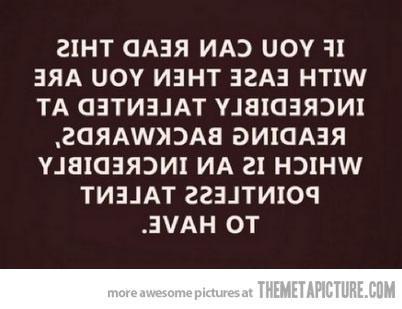


A new picture tomorrow morning, around 10 a.m.


Write upside down to your friends! In your blog, anywhere...
(works with MySpace, Twitter, Facebook, Youtube, MSN, Hi5, Bebo, Yahoo...)